Chrome Web Extension
The MyTradingGuard Chrome extension checks every order you place on TradingView against your trading rules — blocking violations automatically, in real time, without any manual action on your part. This guide covers every screen, every setting, and every feature.
What is the Chrome Extension?
The Chrome extension runs as a Side Panel inside Chrome, sitting quietly alongside TradingView. When you place an order on TradingView, the extension checks it against your active rules — and either lets it through or blocks it with a desktop notification.
There is nothing to install beyond the extension itself. No Python, no local server, no VPN.
Installation
The extension is free and available on the Chrome Web Store. Requires a recent version of Google Chrome.
- Open the Chrome Web Store and search for MyTradingGuard, or use the direct link on our homepage.
- Click Add to Chrome and confirm the permissions dialog.
- After installation, the shield icon appears in your Chrome toolbar. Click the puzzle piece icon → find MyTradingGuard → click the pin icon to keep it visible.
- Navigate to TradingView (tradingview.com) and open the extension by clicking the shield icon in the toolbar.
Setup Wizard
On first launch, the Setup Wizard runs automatically — before the one-time Enable Protection step. It guides you through all 13 rules, one at a time (for Blocked Days, the last step, it has the switches; the days you pick yourself are added in Settings). Each rule has an on/off toggle — enable only the ones you want. You can skip the wizard entirely and configure everything later in Settings.
Wizard — Welcome Screen
The welcome screen introduces MyTradingGuard and lets you choose between starting the guided setup or skipping directly to the dashboard.
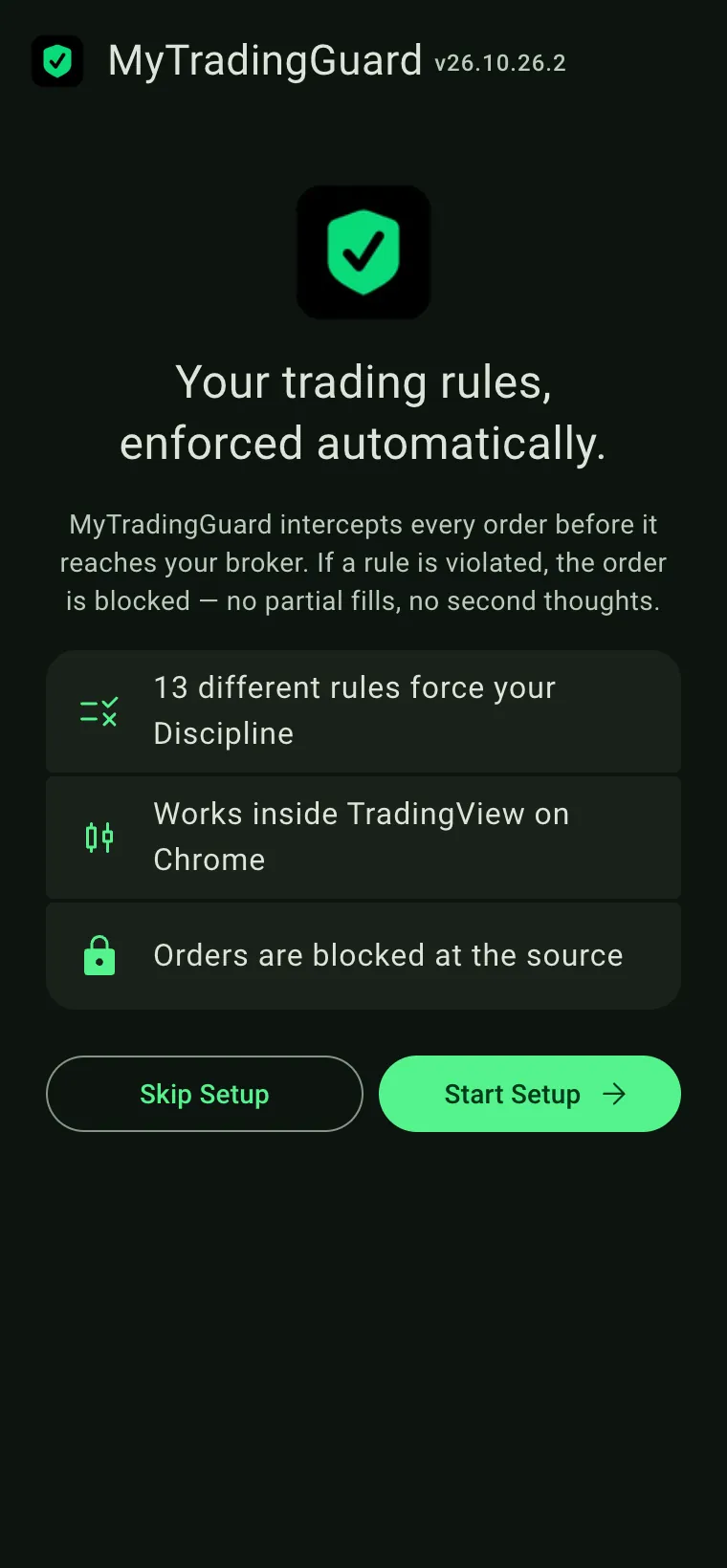
Start Setup → takes you through each rule one by one. Recommended for first-time users.
Skip goes directly to the dashboard with default settings applied. You can always adjust rules later in Settings.
Time Window
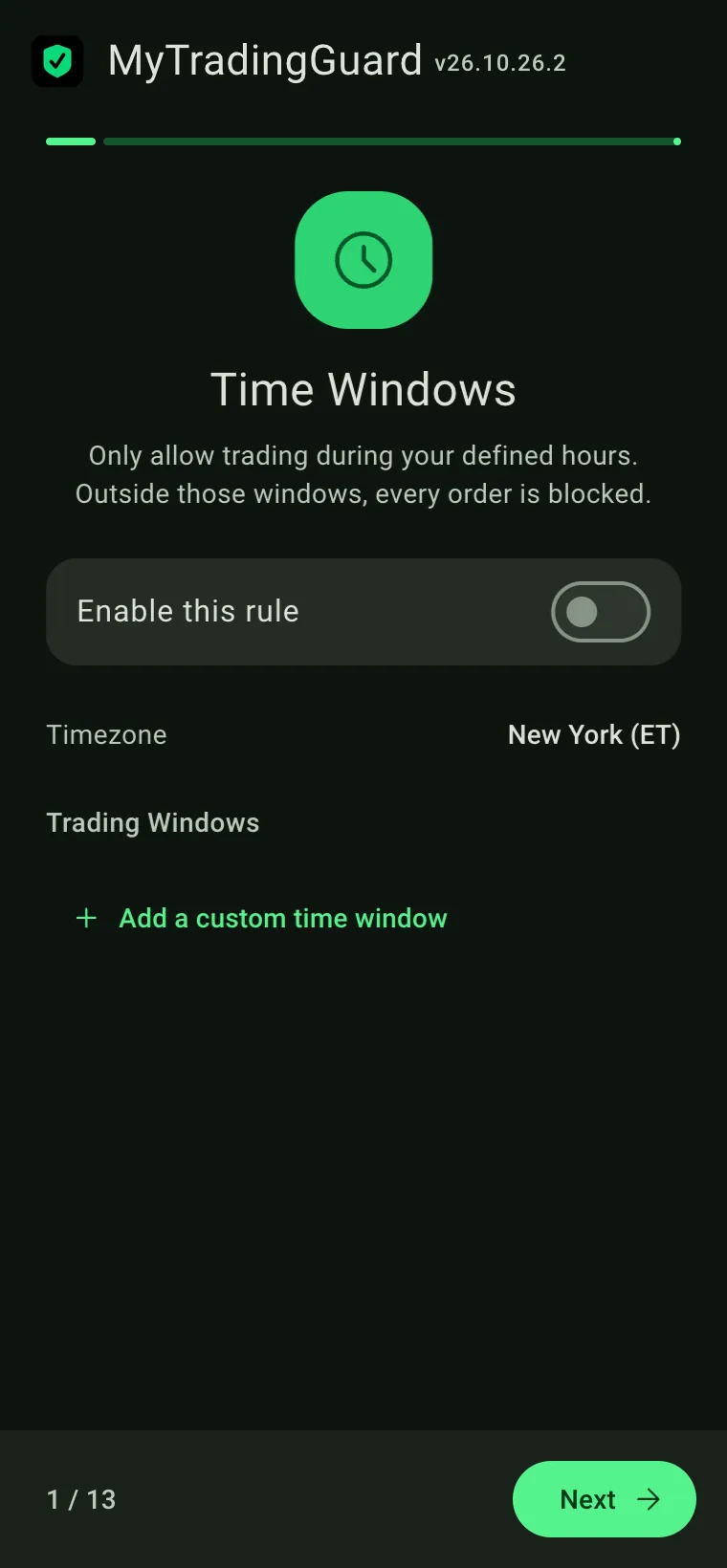
Define the hours — and, if you wish, the days of the week — during which you are allowed to trade. Any order placed outside these windows is automatically blocked.
| Field | Description |
|---|---|
| Enable this rule | Toggle the entire rule on or off. When off, time is not checked. |
| Timezone | Always New York time (ET), the reference clock of US futures and equity markets. Every time MyTradingGuard shows you is New York time too. |
| Trading Windows | One or more from/to time ranges. You can add multiple windows (e.g. 09:30–11:00 and 13:30–15:30). Orders outside all windows are blocked. |
| Days | The days of the week on which each window applies. All days are selected by default; click a day to turn it off or on. At least one day always stays selected. A window that crosses midnight (e.g. 18:00–03:00) belongs to the day it starts on. |
| + Add Window | Adds another time range to the list. |
Cooldown After Trade
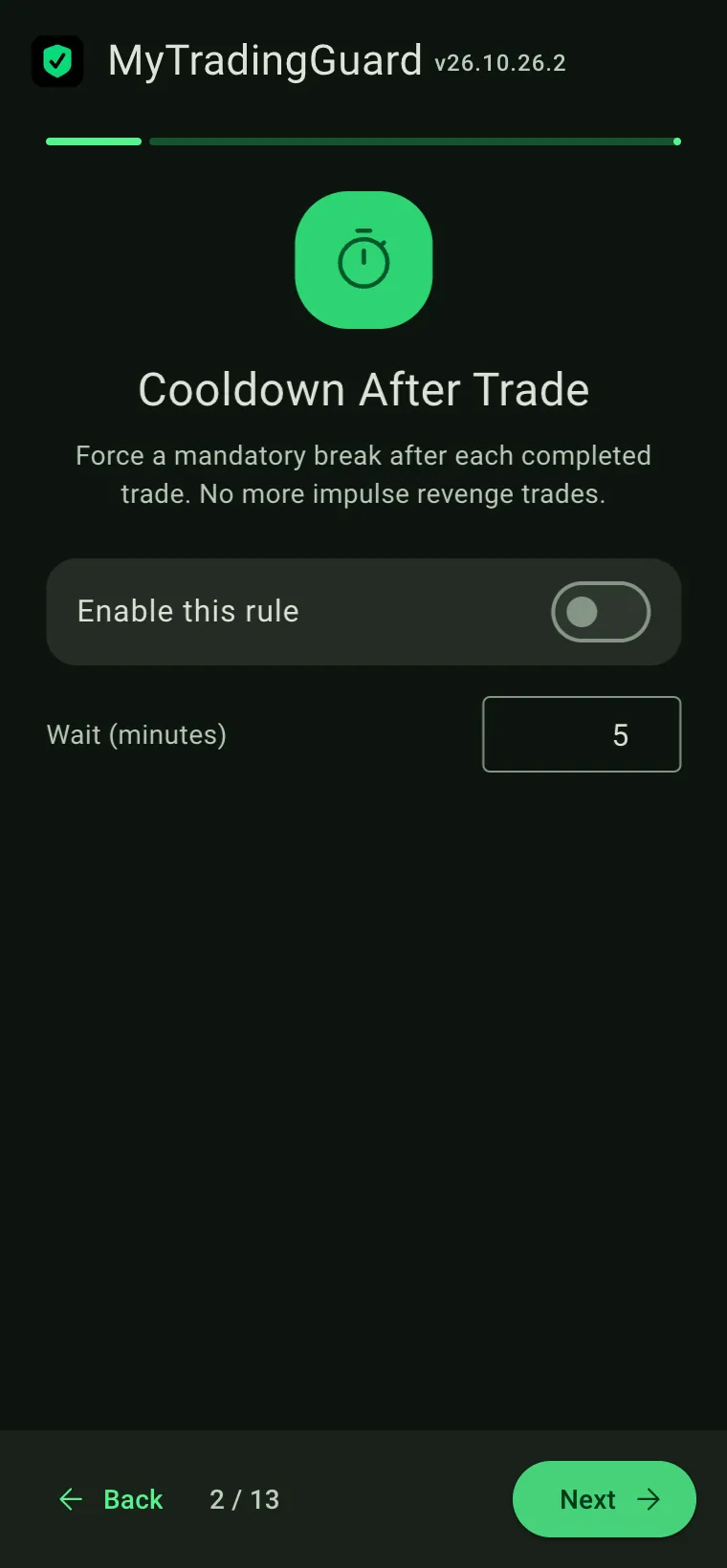
After each completed trade (round-trip), all new orders are blocked for the specified number of minutes. This prevents revenge trading — the instinct to immediately re-enter after a loss.
The countdown appears in the status badge at the top of the extension, showing how many minutes remain before trading resumes. The badge reads Cooldown 3m during the wait.
Overtrading
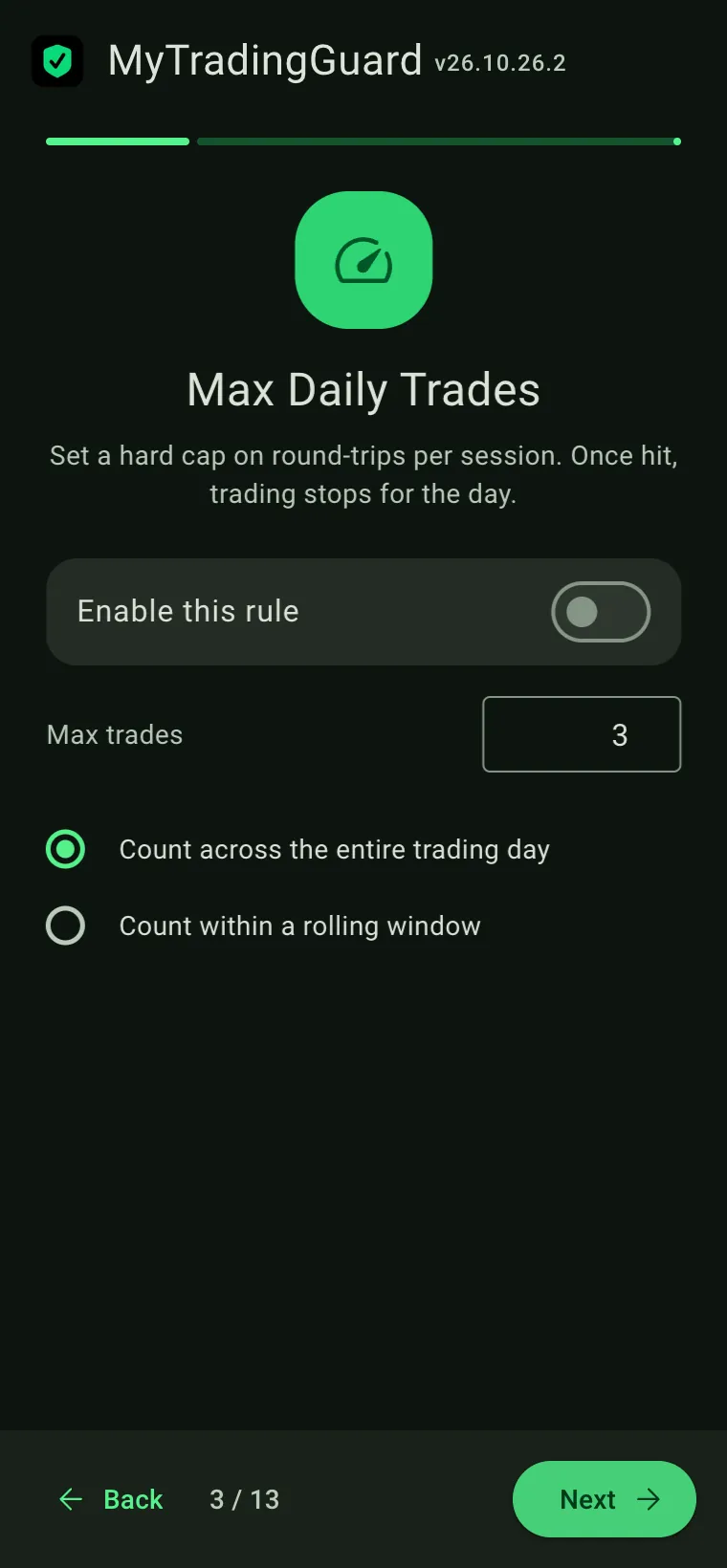
Limits how many trades you can take. You can choose between a daily cap (e.g. max 3 trades per session) or a rolling time window (e.g. max 2 trades within any 60-minute window). Once the limit is hit, new orders are blocked.
The dashboard shows your current count in real time: 2 / 3. When the limit is reached, the status turns Blocked.
Max Losing Trades
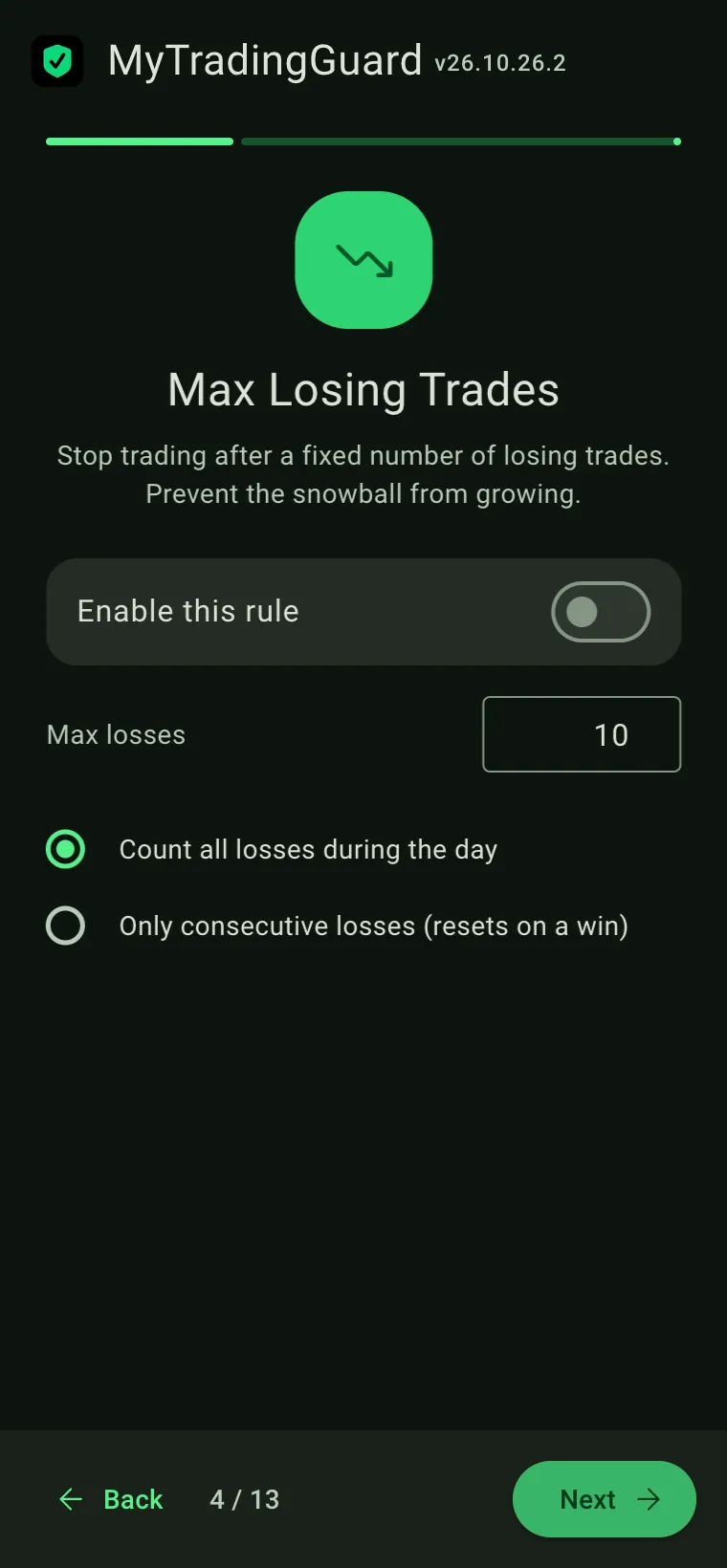
Counts trades that closed with a net loss. You can choose to count losses for the entire day or only consecutive losses in a row. When you reach the limit, all further orders are blocked. This prevents the classic losing-streak spiral.
Max Order Size
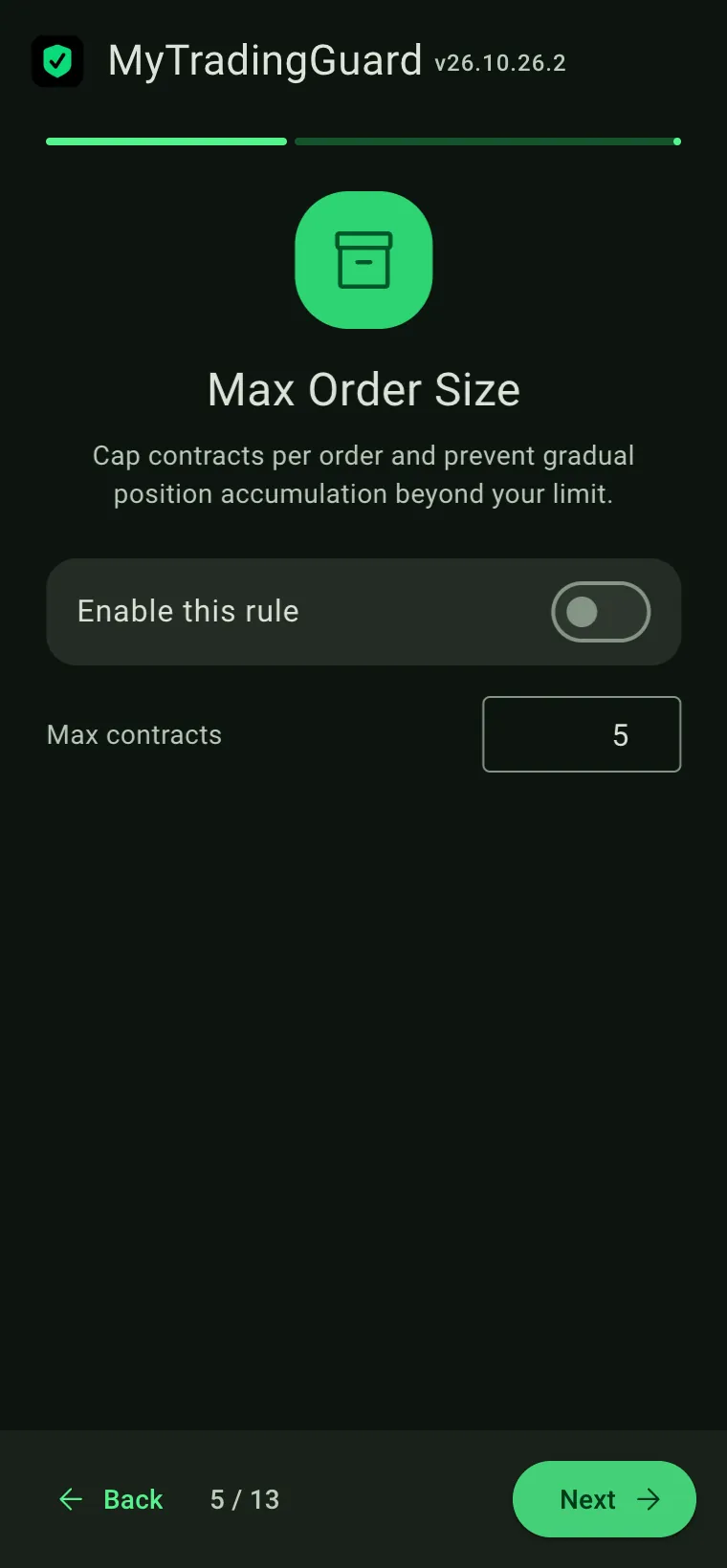
This rule enforces two checks. First, any single order whose quantity exceeds the limit is blocked immediately. Second, the extension tracks your net position and blocks orders that would push your total exposure beyond the limit — even if each individual order is small. For example, with a limit of 5: if you are already short 5 contracts, a sell order for 1 more is blocked (it would bring net exposure to 6), but a buy order for 5 is allowed (it closes the position to flat).
The limit is a whole number of contracts (default 5).
On the dashboard, the rule shows a progress bar and a live position count (e.g. "2 / 3 contracts") while you hold a position. When your open contracts reach the limit, the rule row turns red — a clear visual signal that new orders adding to this position will be blocked. When you close the position (back to flat), the row returns to green.
Max Trailing Drawdown ($)
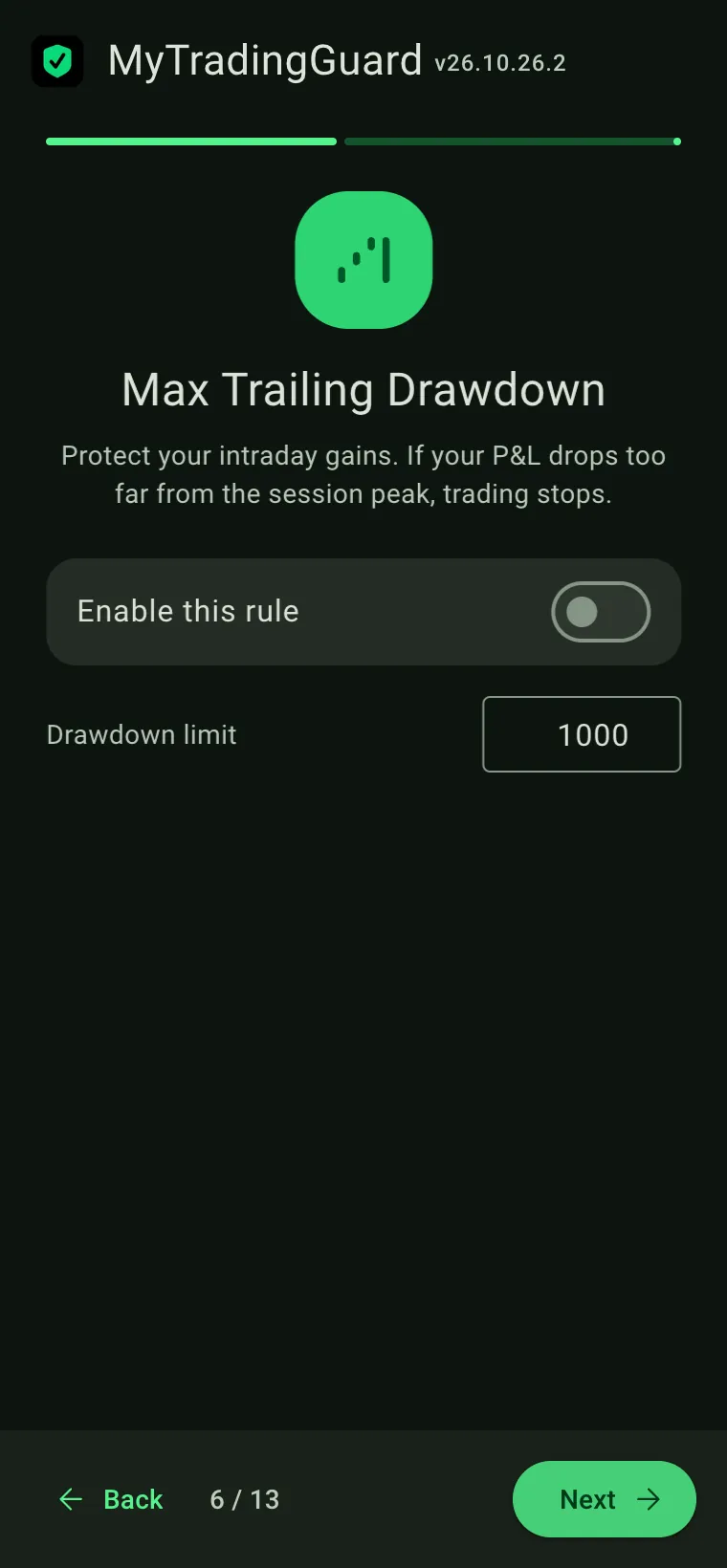
Unlike Max Daily Loss (which measures the drop from the start-of-day baseline), this rule tracks the highest realized P&L reached during the session and blocks new orders when the drawdown from that peak exceeds the configured threshold.
For example, with a drawdown limit of $500: if you reach a peak P&L of +$1,200 and your P&L then falls to +$700 ($1,200 − $500), all new orders are blocked. This protects you from giving back hard-earned gains during a reversal.
Max Daily Loss ($)
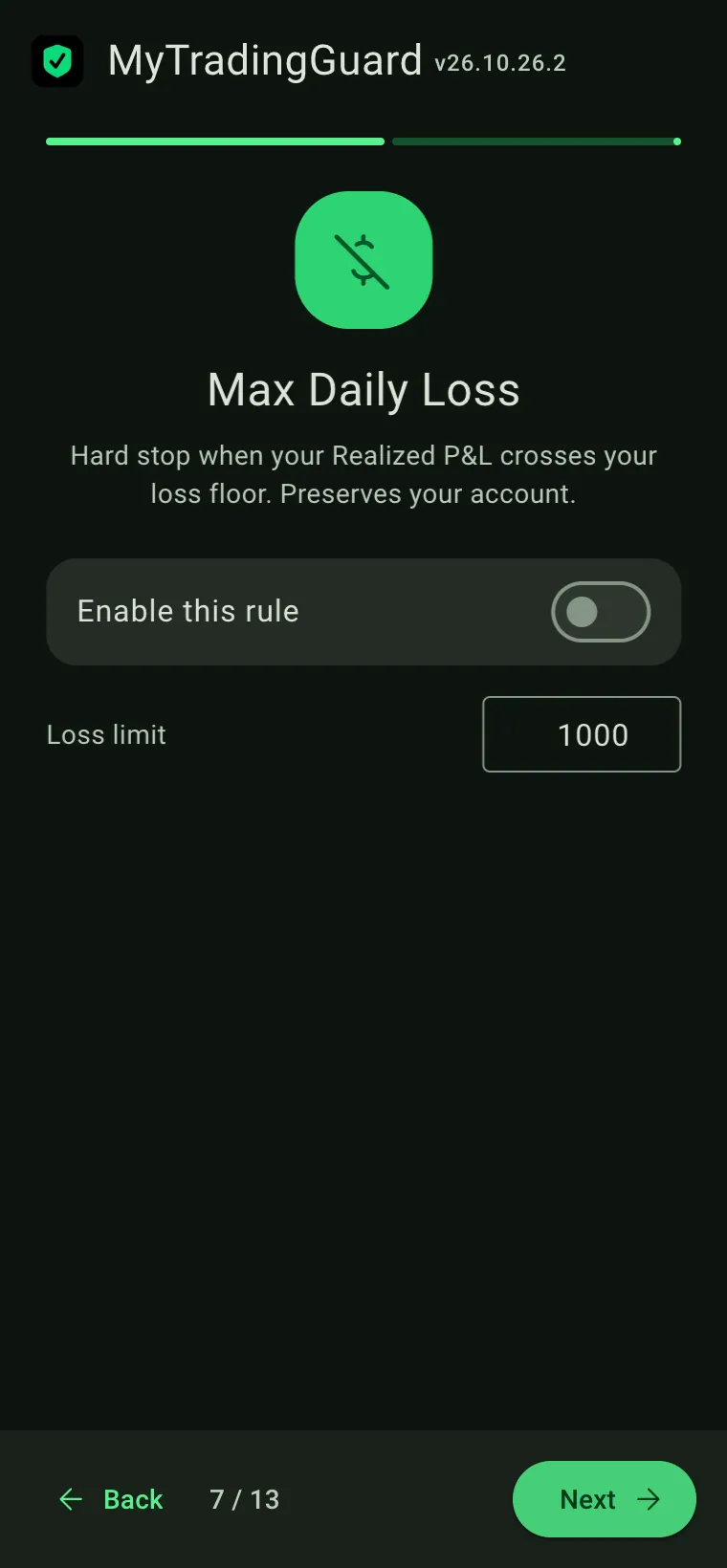
Enter your maximum tolerated loss in dollars as a positive number.
When your realized P&L for the day drops below −$200 (for a limit of 200), all orders are blocked for the rest of the session.
P&L is tracked in real time. The rule fires as soon as the threshold is crossed, mid-session.
Max Daily Profit ($)
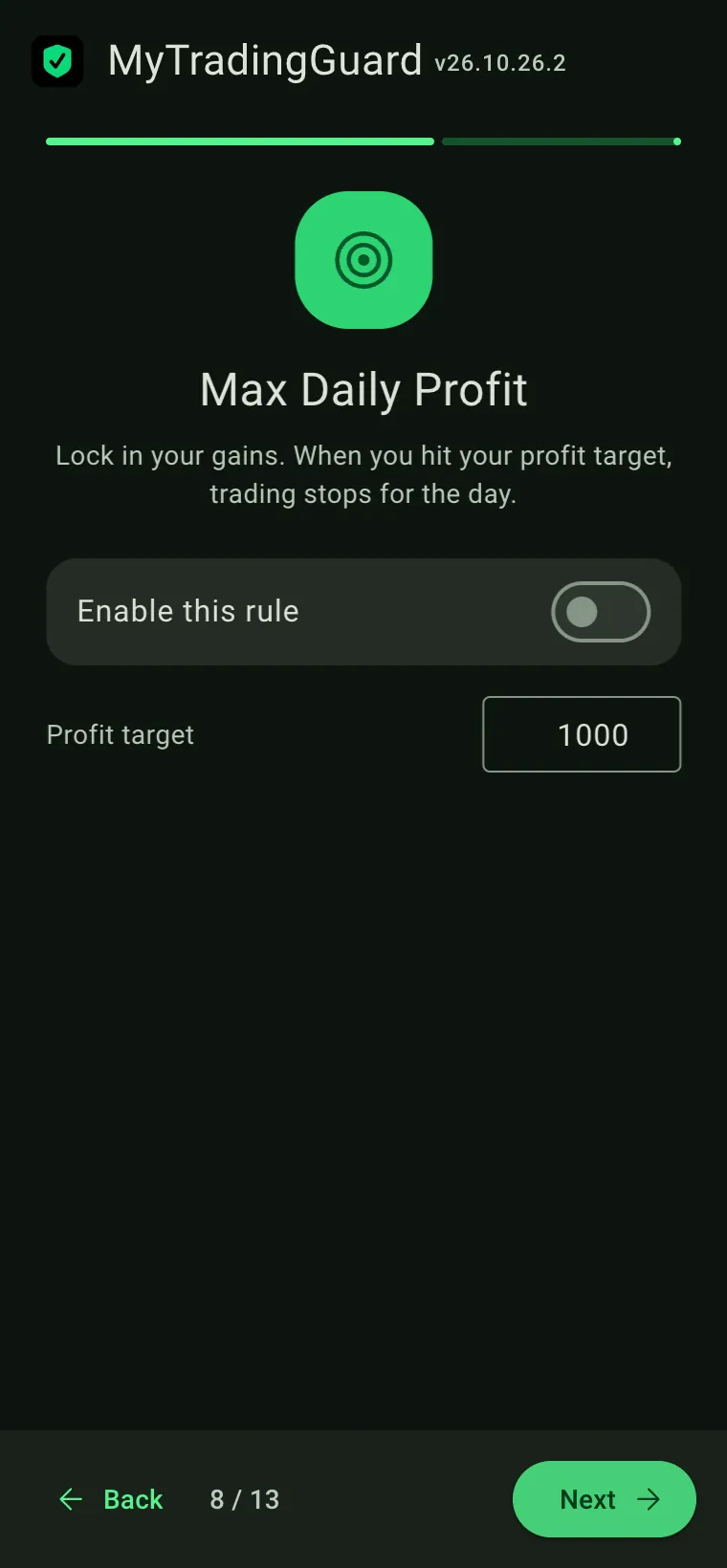
When your realized P&L reaches or exceeds this amount, trading is blocked for the rest of the day. This prevents the common mistake of giving back profits by continuing to trade after a good session.
After the wizard completes all 13 steps, you land on the Dashboard with all your rules active.
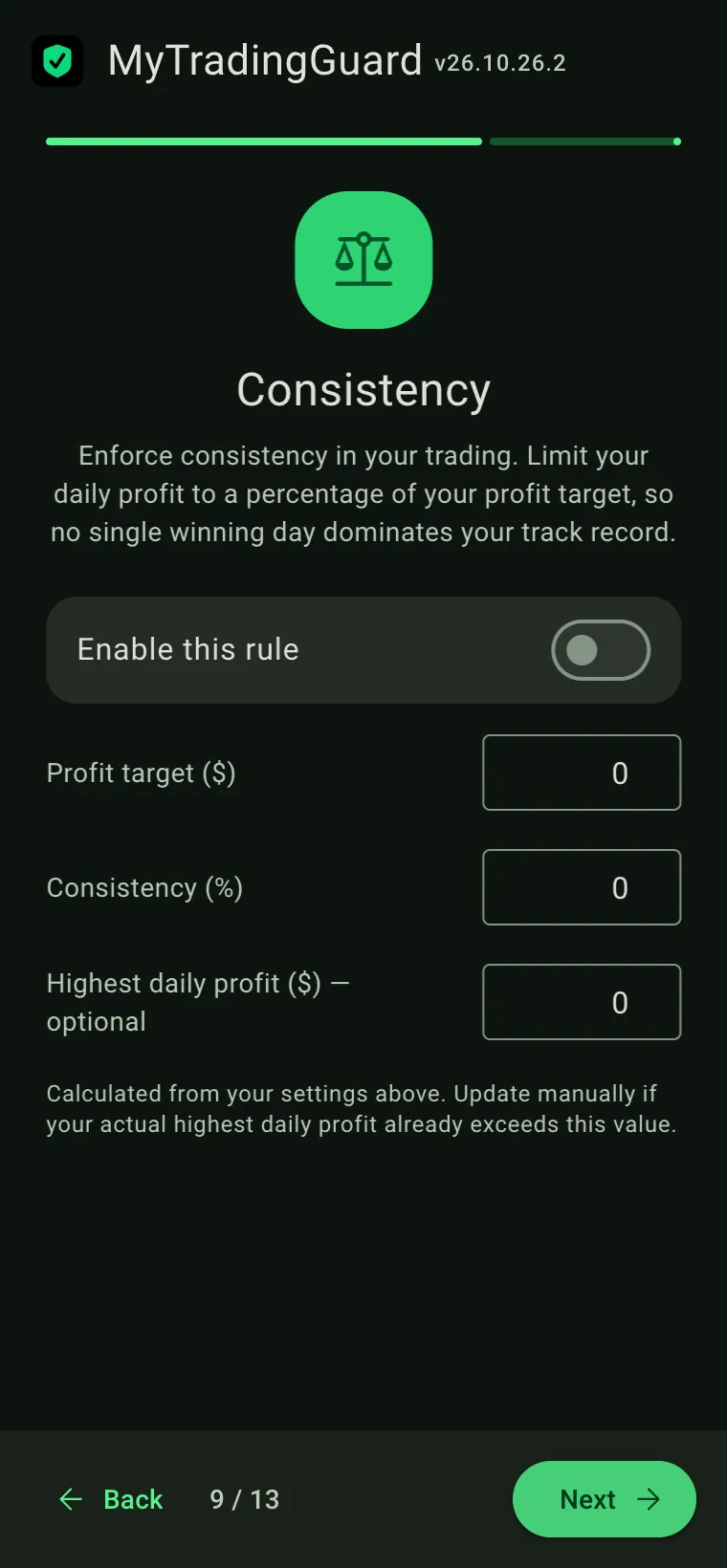
Consistency
The Consistency rule enforces discipline in your winning days. It limits how much you can earn in a single session to a percentage of your overall profit target, so no single winning day dominates your track record.
You configure three values: Profit Target (your overall goal, e.g. $9,500), Consistency % (e.g. 20%), and optionally Highest Daily Profit (the most you've earned in a single day so far).
The effective daily limit is calculated as Profit Target × Consistency%. For example, $9,500 × 20% = $1,900. If you also set a Highest Daily Profit of $2,786, the limit becomes $2,786 (whichever is higher). Once your realized P&L reaches the limit, orders are blocked for the rest of the session.
High Impact News
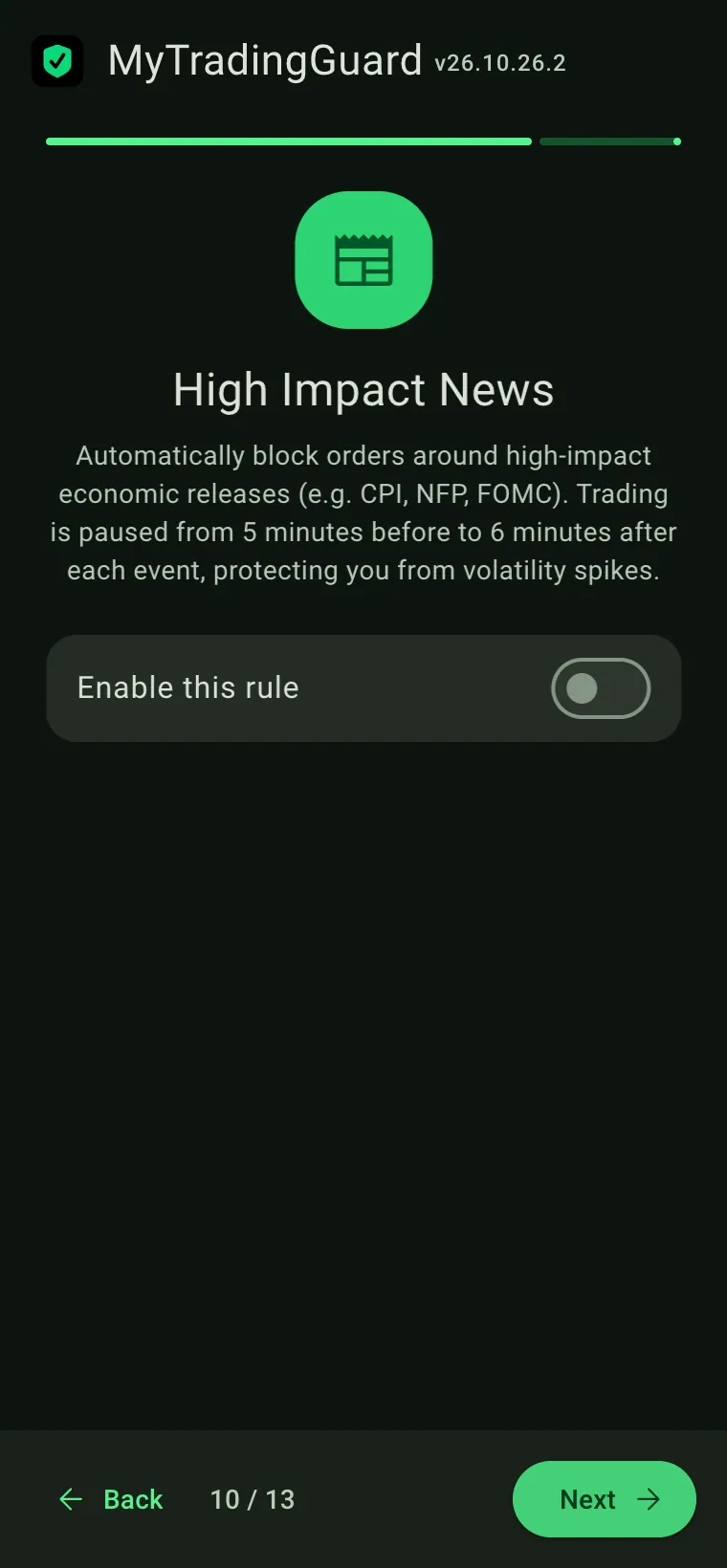
The High Impact News rule automatically blocks orders around major economic releases — CPI, Non-Farm Payrolls, FOMC decisions, and other high-impact events. Trading is paused from 5 minutes before to 6 minutes after each event, protecting you from volatility spikes that can blow through stops.
News data is updated automatically in the background. No user configuration is needed beyond enabling the rule.
The dashboard shows the next upcoming event for the current day and its countdown (e.g. "CPI (USD) in 1h:07m"). Events from other days in the weekly feed are not shown. When all of today's events have passed, the detail line changes to "No more high-impact events today". When a news window is active, the status badge shows Blocked and the unlock countdown displays the remaining minutes.
Hover the rule row to see a tooltip listing all of today's scheduled events with their times. Events that have already passed are shown with reduced opacity and strikethrough text, so you can immediately see which ones are still ahead.
Allowed Tickers
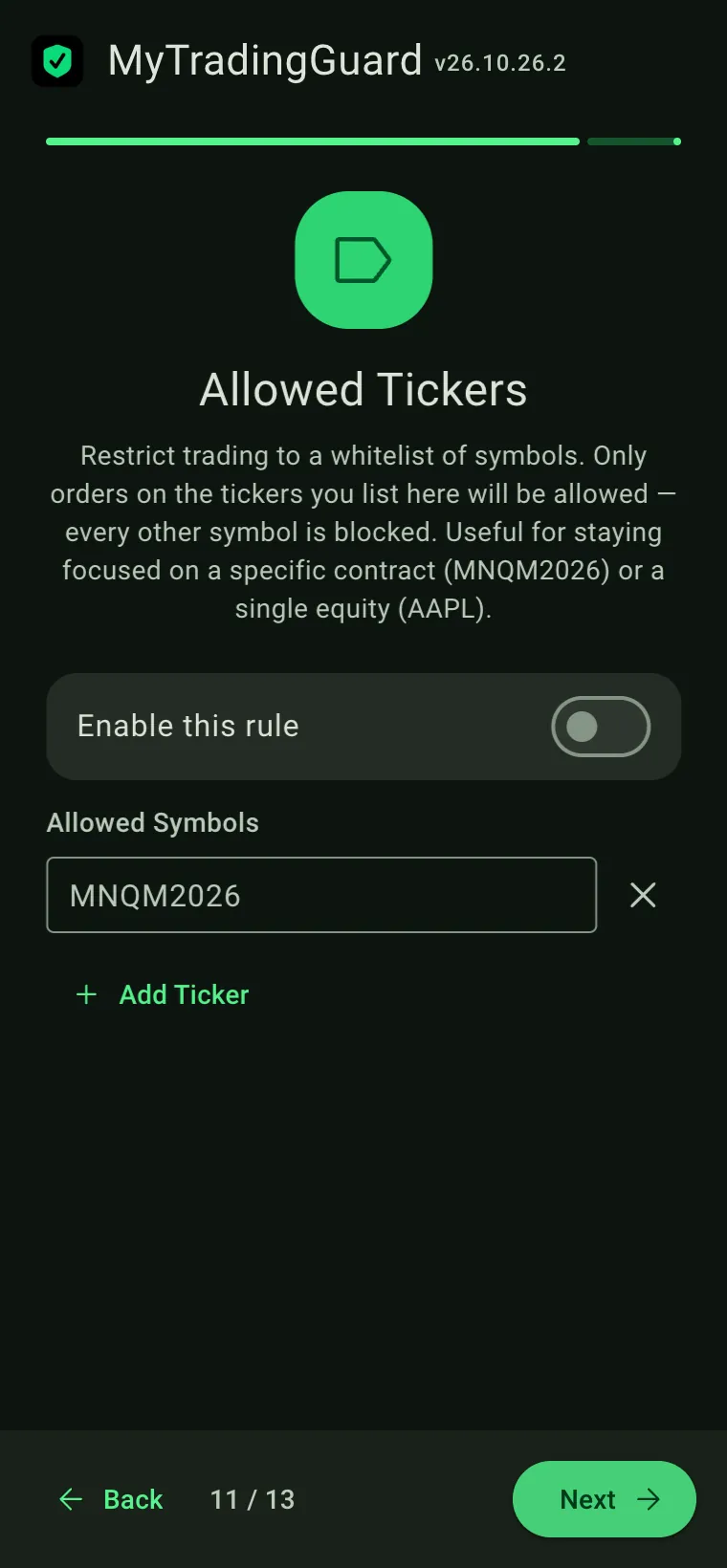
The Allowed Tickers rule restricts trading to a whitelist of symbols you explicitly approve. When the rule is active, every order on a symbol that is not on your list is blocked — regardless of account, size, or market. It's a hard commitment device for traders who have chosen a specific contract or equity to focus on and don't want to drift onto other instruments during a weak moment.
Typical use cases:
- One contract, one session — futures traders who trade only
MNQM2026(Micro Nasdaq June 2026) this quarter add that single ticker to the list; any accidental order on MES, M2K, or MYM is blocked at the broker layer. - Equity focus — a swing trader working only on AAPL and SPY enters both; every other symbol is blocked even if they're tempted by a hot pre-market mover.
- Strategy-specific — a pair-trader who only trades EURUSD against GBPUSD whitelists both pairs and is protected from impulse trades on exotic crosses.
How to configure: enable the rule with the toggle, then click + Add Ticker to add one row per symbol. Type the broker-specific ticker code exactly as it appears in your platform (for example MNQM2026, not MNQ). The match is case-insensitive and exact — there are no wildcards or prefix-matches, so MNQ alone will not cover MNQM2026. Use the ✕ button on a row to remove a ticker.
When an order is blocked by this rule, the reason shown in the Events log reads "Symbol X is not in the allowed list (AAPL, MNQM2026)", listing your current whitelist so you can see at a glance whether you meant to add that ticker.
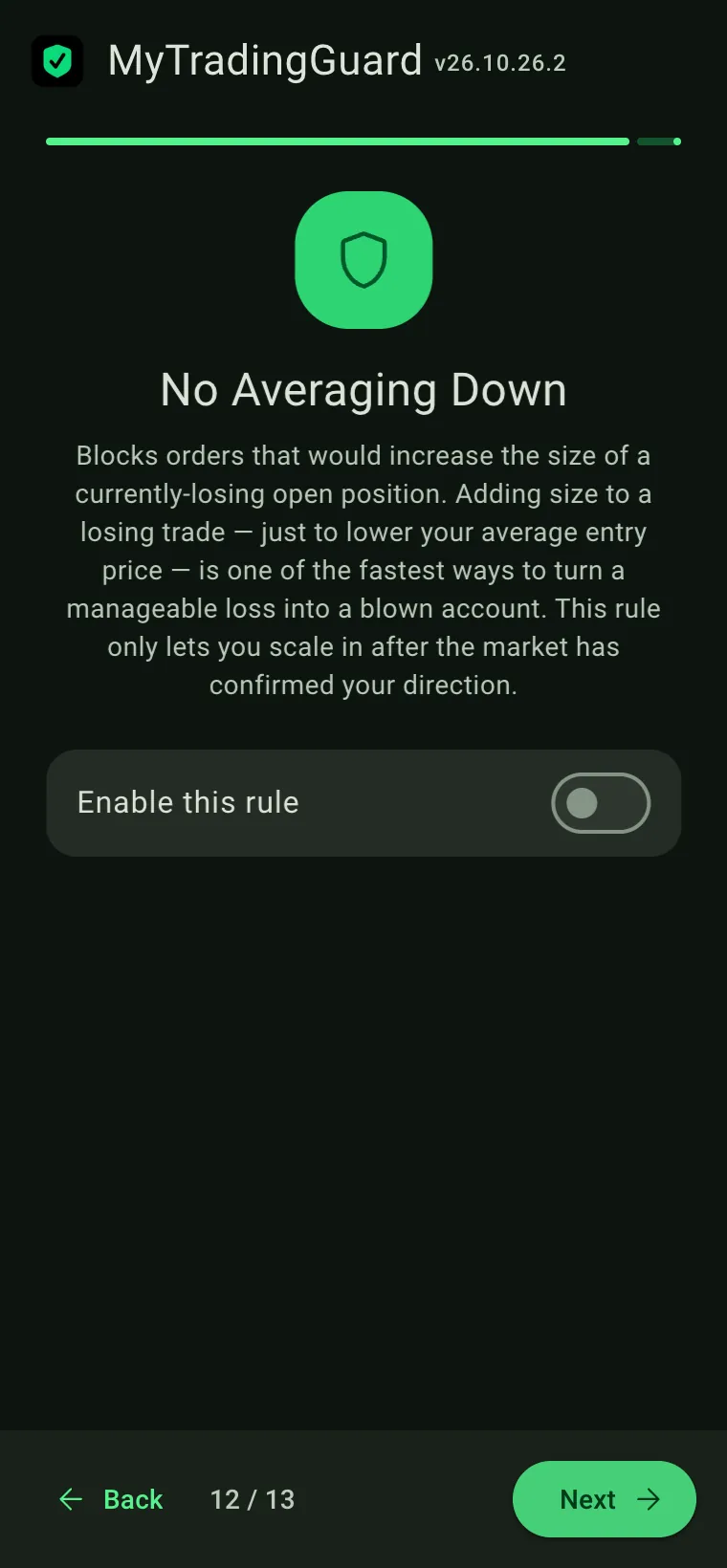
No Averaging Down
The No Averaging Down rule blocks any order that would increase the size of a currently-losing open position. It enforces the classic trading discipline of "add to winners, not to losers": you are only allowed to scale into a position after the market has confirmed that the direction of your thesis is right — never to lower the average entry price on a loser.
Adding contracts to a losing position is one of the fastest ways to turn a manageable loss into a blown account. The math is unforgiving: a 2× size on a loser doubles the P&L velocity in the wrong direction, and a drawdown that was 25% of your daily loss limit becomes 50% — still losing — before you realize what happened. This rule removes that option at the broker-interception layer, so the decision is already made while you're calm and not under pressure.
How the rule evaluates an order:
- Long position + buy order + position losing → BLOCKED (adding to a losing long = averaging down)
- Short position + sell order + position losing → BLOCKED (adding to a losing short = averaging down)
- Opposite-direction order (e.g. sell on an open long) → allowed, because reducing or closing a losing position is always the right thing to do
- Position in profit → allowed, because scaling into a winning trade is not averaging down — it's the discipline this rule encourages
- Position breakeven or flat → allowed, because there's nothing to average down from
No configuration needed — this is a simple ON/OFF toggle. Either you're enforcing the discipline or you're not. There are no thresholds, no minimum losses, no grace windows.
When an order is blocked by this rule, the reason shown in the Events log reads: "Averaging down blocked: long position of 3 contracts is losing ($-150.00). Scale in only after the market confirms your direction." — with your actual position side, size, and live P&L substituted in.
Blocked Days
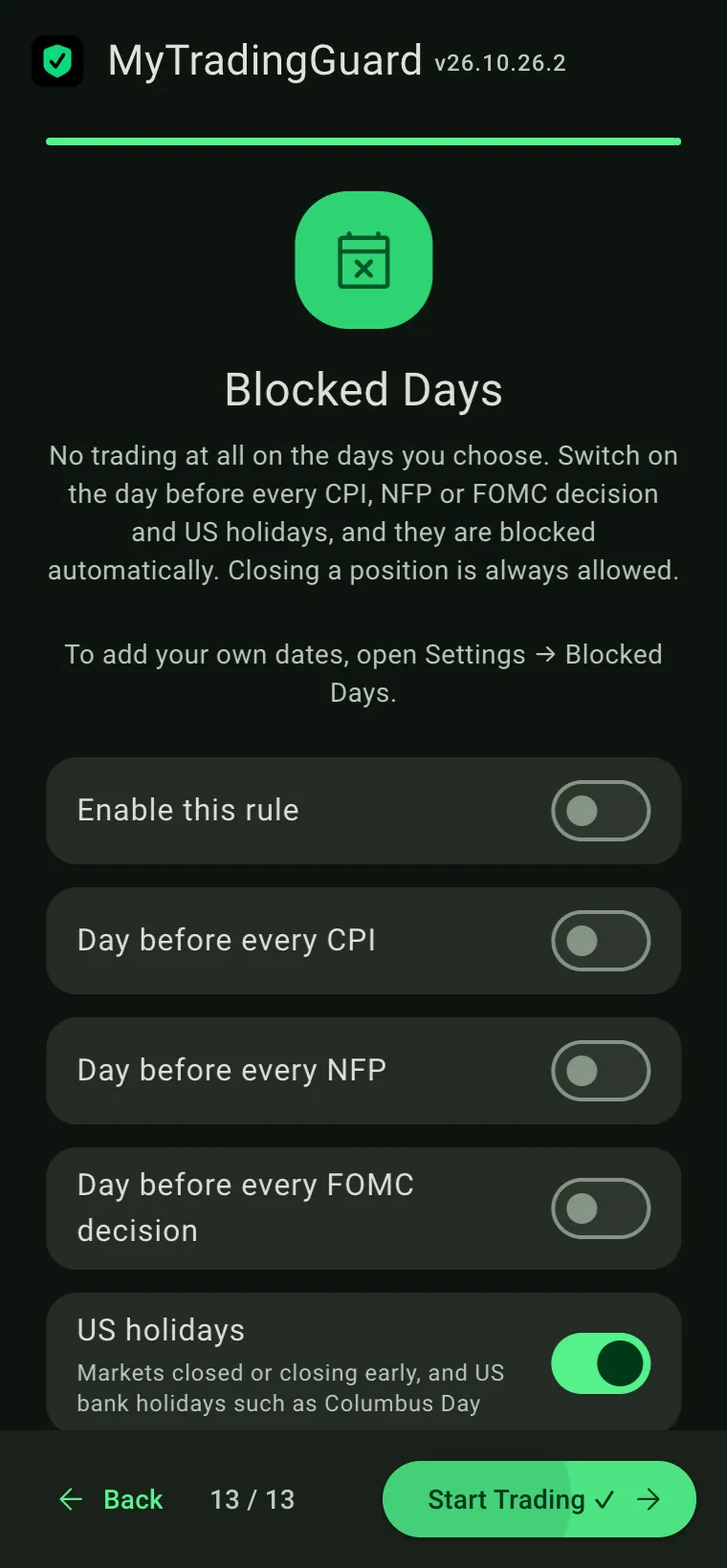
Blocked Days stops all new trades on the days you choose. Some traders sit out the day before a big release, a holiday week or a day they already know they won’t be focused: this rule makes that decision stick.
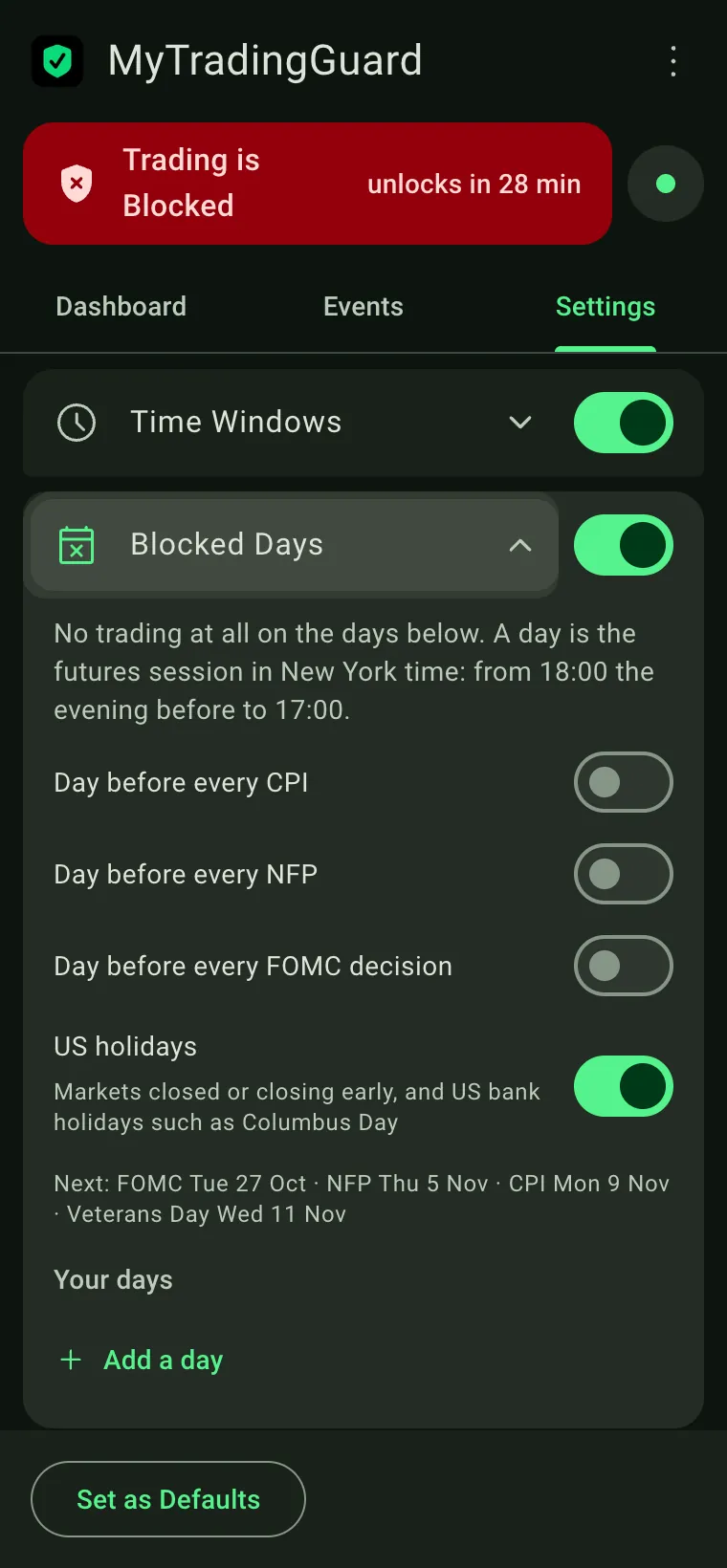
The last step of the Setup Wizard has its switches; the days you pick yourself are added in the side panel’s Settings tab:
- Your days — press Add a day and pick it in the date picker. Days that have passed disappear by themselves.
- Day before every CPI, Day before every NFP, Day before every FOMC decision — one switch each, all off by default. Switched on, they block the trading day before each release (a release on Monday blocks the Friday before). The line under the switches shows the next day each one would block.
- US holidays — on by default: every day the US stock market is closed (Thanksgiving, Christmas, Good Friday…) or closes early (13:00 ET, e.g. the day after Thanksgiving), and the US bank holidays when markets stay open (Columbus Day, Veterans Day). On those days futures trade thin, shortened sessions.
A day is the futures session in New York time: from 18:00 ET the evening before to 17:00 ET — the same day the daily counters use. The CPI, NFP and FOMC dates and the holidays come from the official BLS, Federal Reserve and NYSE calendars and are built into the app, so they work offline; this version covers them through December 2027.
Enable Protection
After completing (or skipping) the Setup Wizard, you will see the Enable Protection screen. This is a one-time step that activates the extension on TradingView.
Click Enable Protection and approve the dialog Chrome shows you. From that moment on, every order you place on TradingView is checked against your rules.
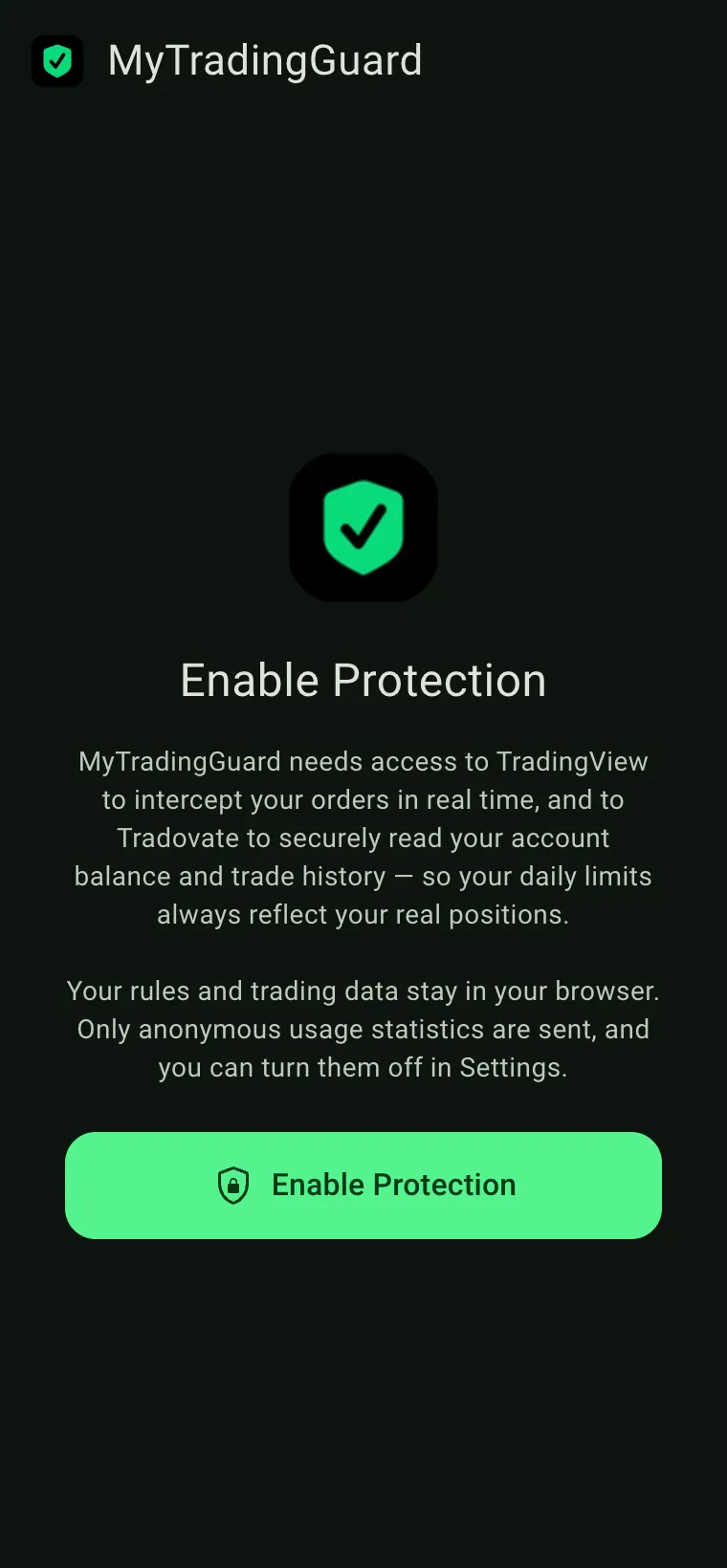
The extension can only act on TradingView — nothing else on the web. All your rules and trade data stay on your device. Nothing is sent to MyTradingGuard servers.
The Dashboard
The Side Panel has three tabs: Dashboard (live rule status), Events (live log of every order check, block, and trade event), and Settings (rule configuration). The Dashboard is the main view you'll use every trading day.
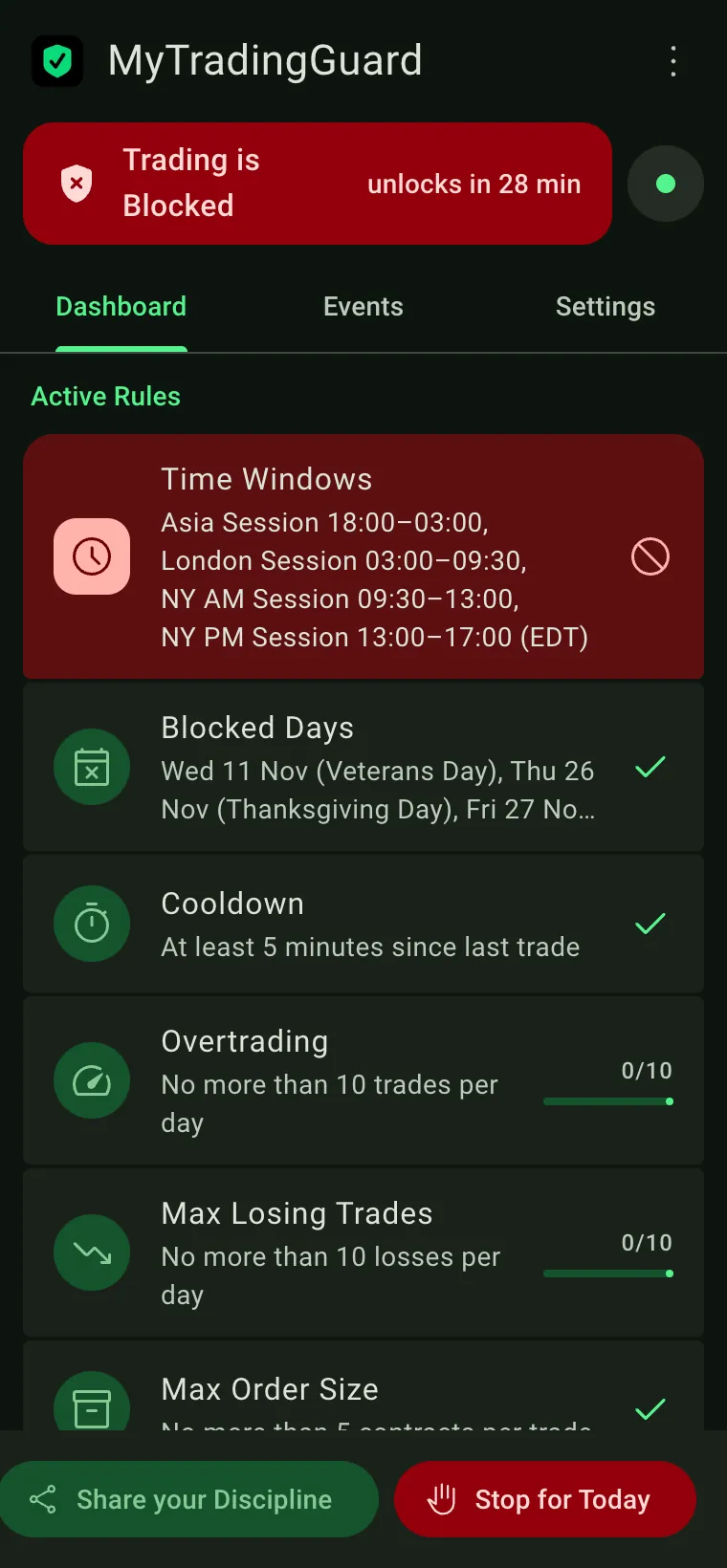
| Element | Description |
|---|---|
| Status badge |
The wide bar under the title. Shows whether you can trade right now: Trading is Enabled — your rules allow new orders Trading is Blocked — a rule is violated (or Stop for Today is on): new orders are blocked, exits still go through |
| Connection indicator | Small dot next to the bar. Green = broker connected. Grey = no broker connected yet (for example before you open TradingView). Orange = offline-safe mode active. |
| Rules list | One row per rule, grouped into "Active Rules" and "Disabled Rules". Green check or value = rule satisfied. Red = rule violated and orders blocked. Progress bars show how close you are to a limit (e.g. trade count, cooldown timer, P&L vs. thresholds). |
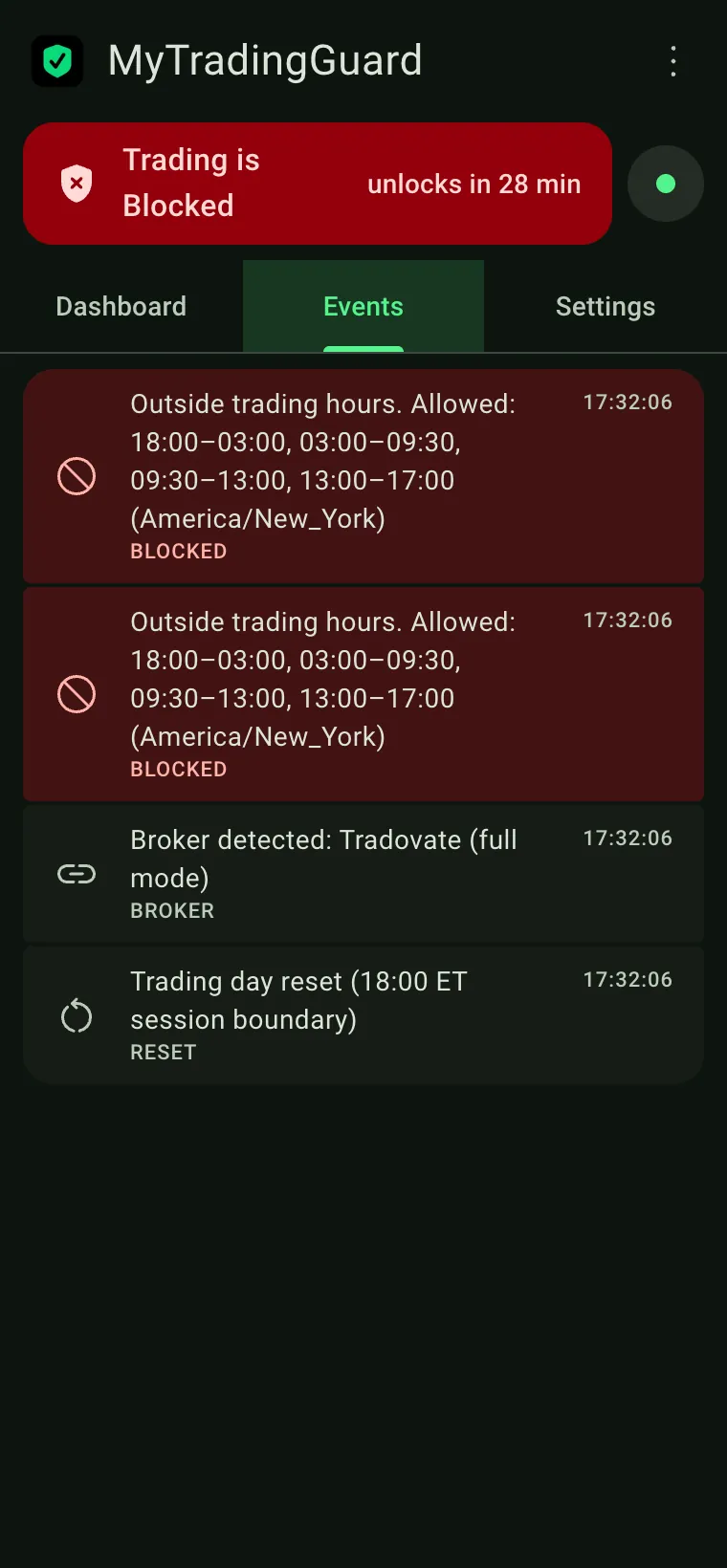
| Events tab | A separate tab showing a live log of every order checked. Green = passed through. Red = blocked, with the reason shown. Also shows broker connection events, trade completions, and session resets. |
| Try your rules | Checks a hypothetical order against your rules. See below. |
| Stop for Today | Instantly blocks all trading for the rest of the day, regardless of other rules. See section below. |
The Events tab is the session log, newest first: every order checked (allowed or blocked, with the reason), the broker detected, completed trades and the daily reset at 18:00 ET.
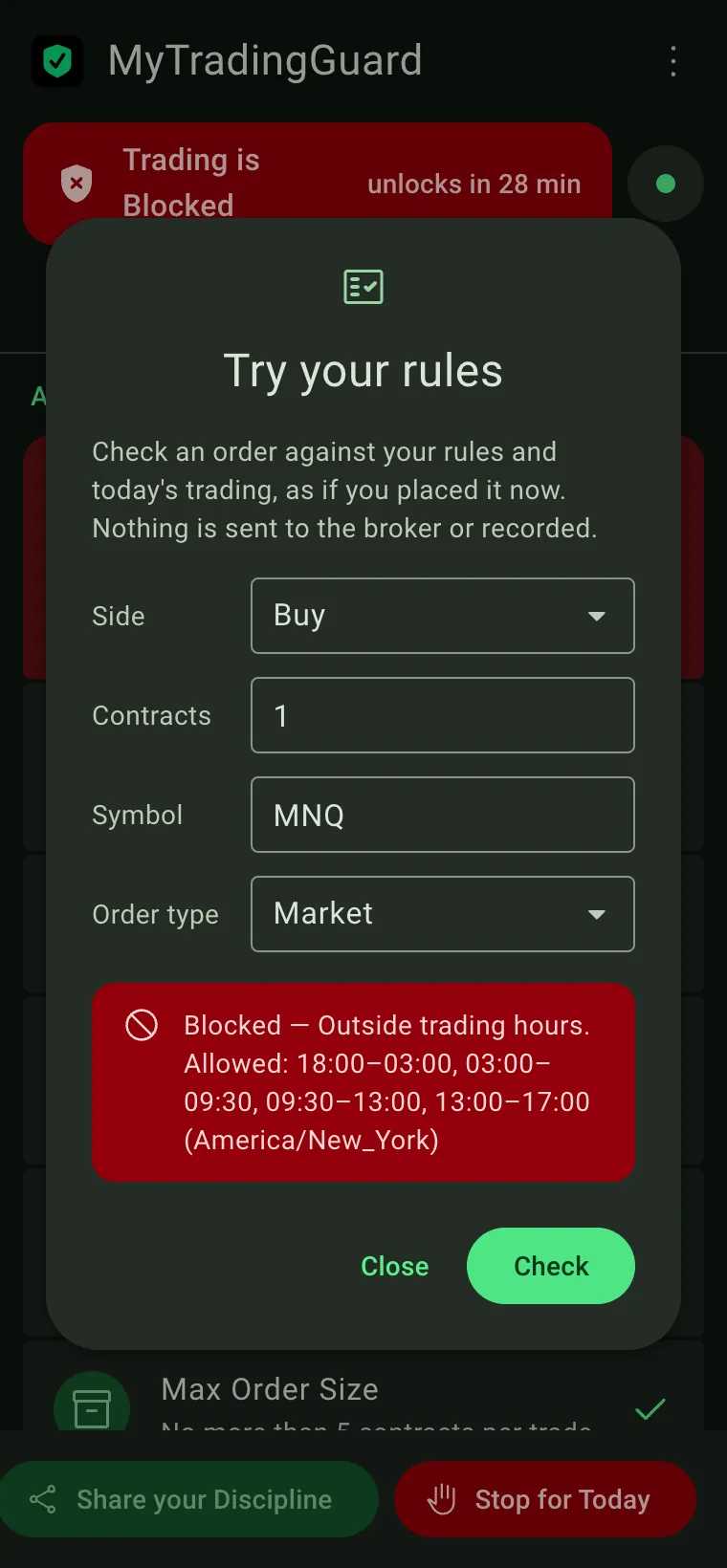
At the bottom of the Dashboard, Try your rules opens a small form: side, contracts, symbol and order type. Press Check to see what MyTradingGuard would do with that order right now, given your rules and today’s trading: allowed, allowed because it closes or reduces your position, or blocked — with the reason.
Nothing is sent to the broker, counted or recorded, so it is the safe way to test a new rule before the session.
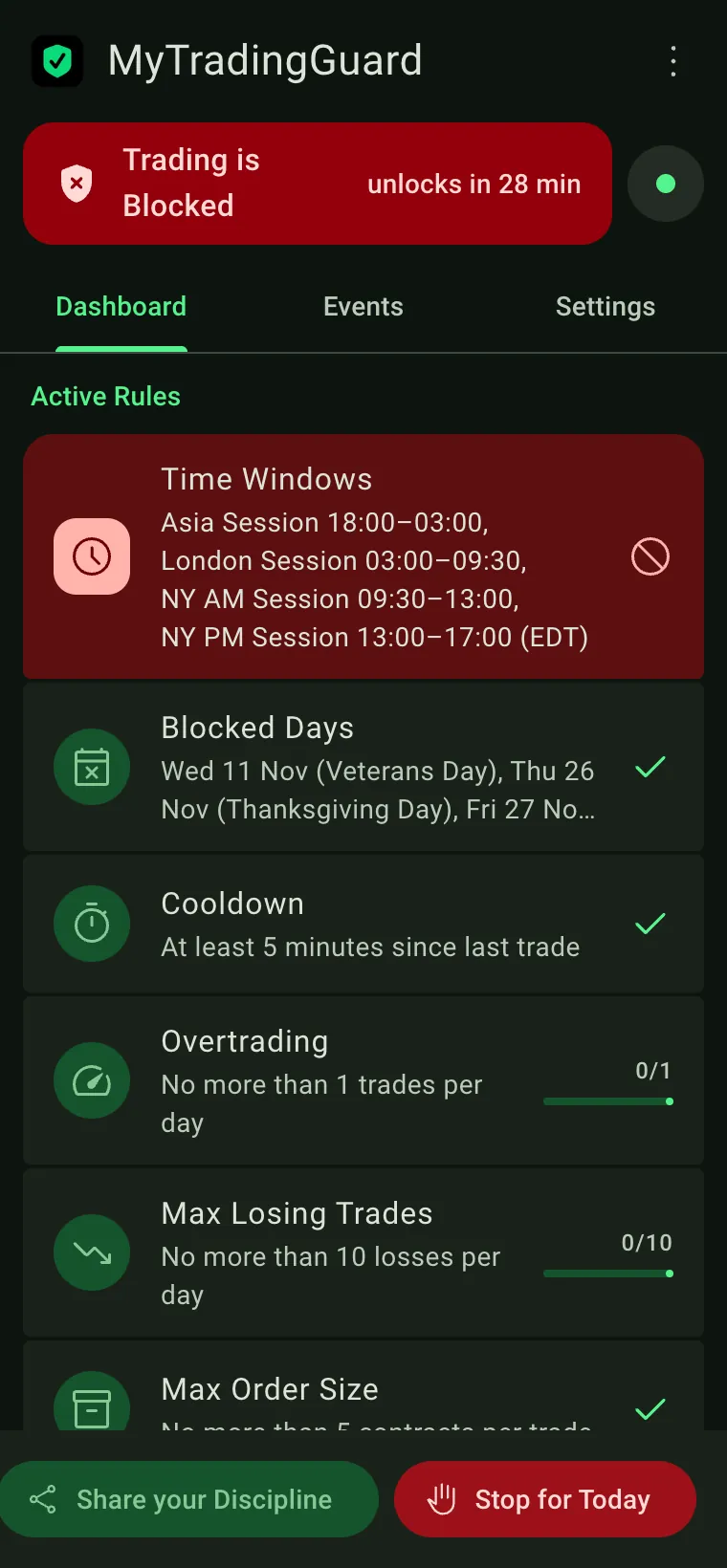
The bar turns red, the rule that tripped is highlighted, and every new order is blocked until the rule allows it again (or until the 18:00 ET reset). In this example the daily trade cap is set to 1 and has been reached.
Settings
The Settings tab is available at any time — even while rules are active — by clicking Settings in the tab bar. Changes are saved automatically and take effect immediately.
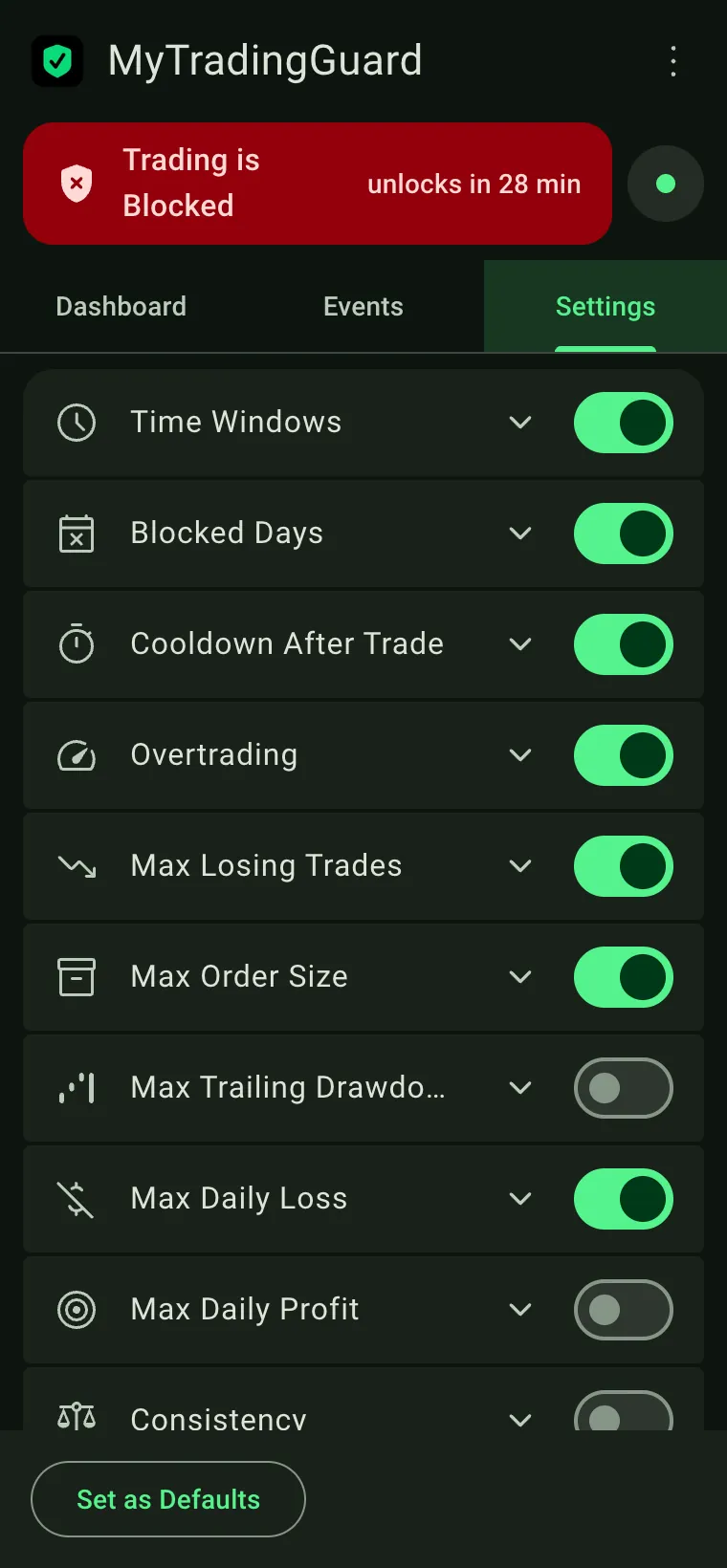
Each rule section has a toggle in the top-right corner. When the toggle is off, the rule is completely disabled and not checked at all. When enabled, the input field(s) below it define the threshold. The full list of rules matches the Setup Wizard: Time Window, Cooldown After Trade, Overtrading, Max Losing Trades, Max Order Size, Max Trailing Drawdown ($), Max Daily Loss ($), Max Daily Profit ($), Consistency, High Impact News, Allowed Tickers and No Averaging Down, plus Blocked Days, which is set only in Settings.
All changes are saved automatically as you type — there is no Save button. A brief "✓ Saved" flash appears at the bottom to confirm.
Clicking Set as Defaults saves your current configuration as the baseline that will be restored if you ever reinstall the extension. Use it after you've settled on your standard trading rules.
The Export and Import options are available in the header menu (click the brand name "MyTradingGuard" at the top of the panel). Export downloads your entire rule configuration as a JSON file; Import replaces all settings with a previously exported file. See the Export & Import section for full details.
When a rule is currently triggered (actively blocking orders), its controls in Settings are locked and a red banner explains why. This prevents loosening a rule you have already breached. The lock lifts as soon as the rule is no longer triggered. Nothing is ever locked during the weekend market closure (Friday 17:00 → Sunday 18:00 New York time), when no order can be placed.
The Usage Data toggle controls anonymous product-usage events sent to Google Analytics — for example "order blocked" or "rule toggled". An event carries at most the rule involved and, when you change a rule, its new numeric setting. No personal data, account identifiers, balances, P&L, orders or symbols are ever included. Disable this toggle at any time to stop all analytics traffic. The choice is stored locally and takes effect immediately.
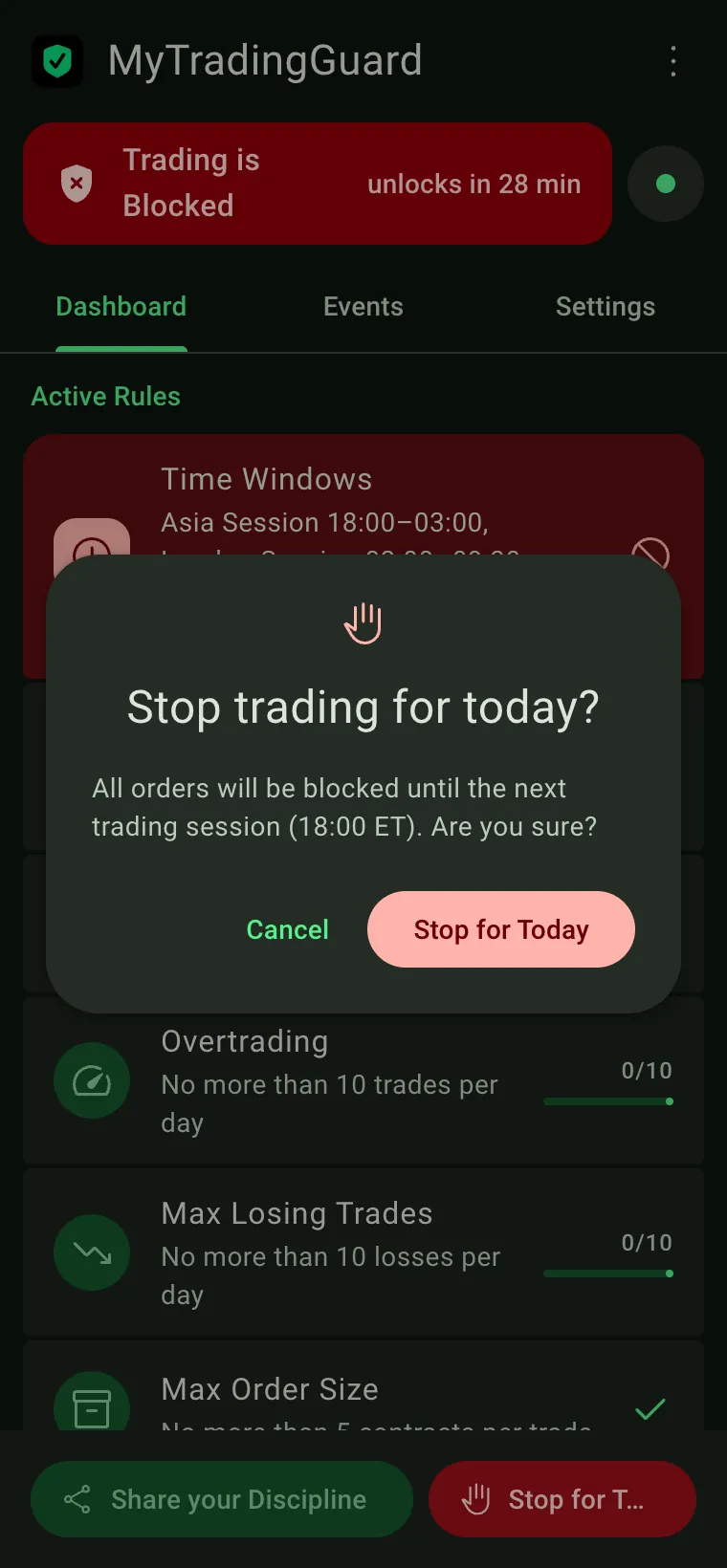
Stop for Today
The Stop for Today button appears at the bottom of the Dashboard. Pressing it immediately blocks all orders for the rest of the trading day — regardless of whether any rule would otherwise allow them.
Use it when you decide the session is over: you've hit your target, you're not feeling it, or you simply want to call it a day and remove any temptation.
The block is automatically lifted at the next CME session boundary (18:00 ET), when all daily counters reset. There is no manual override to cancel it before the reset — this is intentional, to prevent you from giving in to temptation after deciding to stop.
Offline-Safe Mode
When the extension cannot reach your broker (internet issue, broker maintenance, etc.), it switches to Offline-Safe Mode — displayed as an orange banner in the Dashboard.
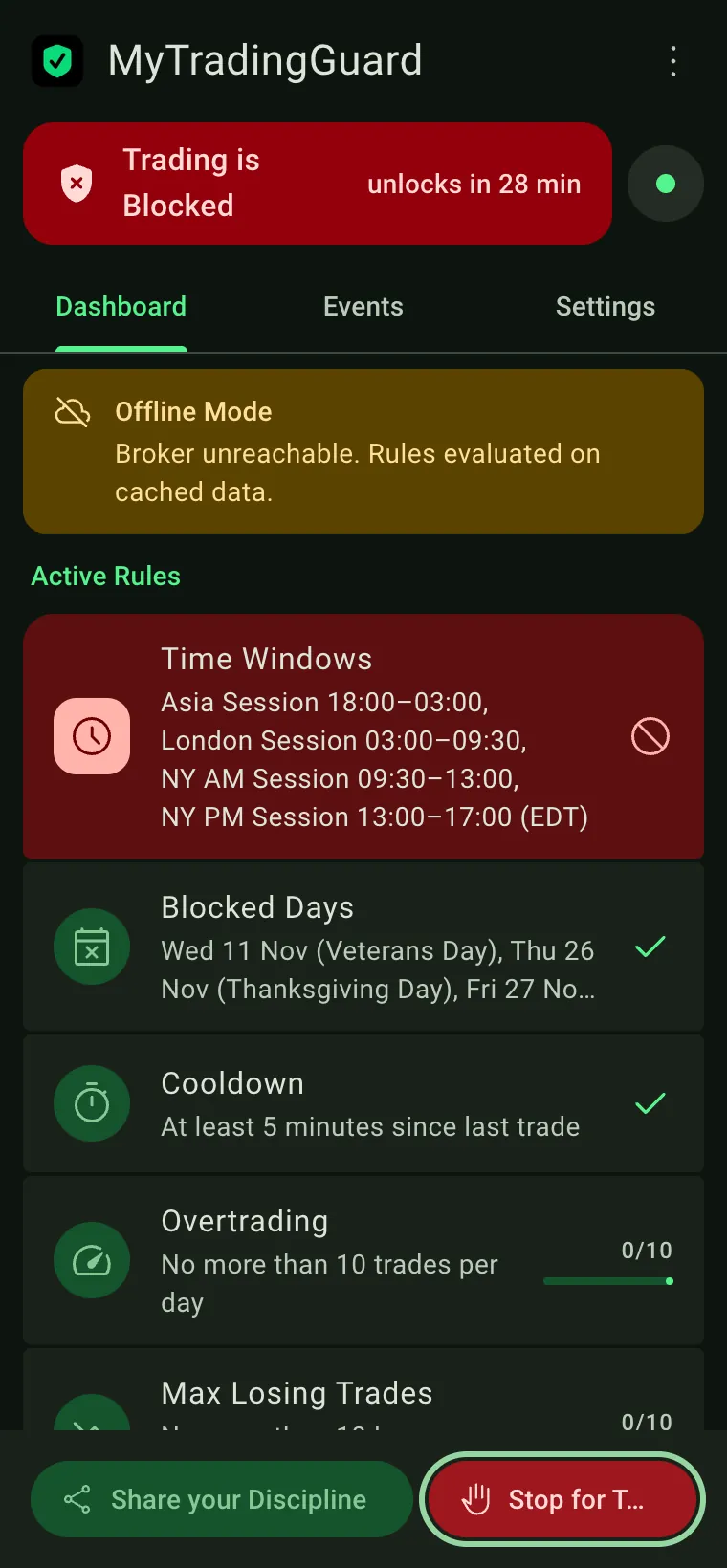
In Offline-Safe Mode, P&L-based rules (Max Trailing Drawdown, Max Daily Loss, Max Daily Profit) use the last known values from your broker. Rules that don't depend on broker data (time windows, cooldowns, trade counts, order size) continue working normally.
Orders are not blocked solely because the broker is offline. The extension continues to evaluate all rules using the most recent data. This “permissive” design ensures you are never locked out of trading due to a temporary network issue — only genuine rule violations trigger a block. Normal operation resumes automatically when the connection is restored.
Export & Import Rules
From the header menu (click the brand name MyTradingGuard at the top of the panel), the Export Rules and Import Rules options let you save your rule configuration to a JSON file and restore it later. This is useful for:
- Backing up your rules before making experimental changes.
- Moving your configuration to another Chrome profile or computer.
- Sharing a rule set with a colleague.
Open the header menu (click the brand name at the top) and select Export Rules. A mytradingguard-config.json file is downloaded automatically. Keep it somewhere safe.
Open the header menu and select Import Rules. Select the JSON file you previously exported. All settings are replaced immediately — no restart needed.
Safety Exemptions
MyTradingGuard is designed to protect you, not to trap you. Three categories of orders are always allowed, regardless of any active rule:
Stop, stop-limit, and trailing-stop orders bypass all rules unconditionally. Blocking a stop-loss during a market move would be catastrophic.
If you have an open position, orders that reduce or close it are always allowed. The extension detects your net position direction and exempts orders that act against it. For example: if you are net long 3 contracts, a sell order is a closing order and passes through — even if "Stop for Today", time window, cooldown, or loss limits are active.
When you modify an existing order (change price, move a stop level), the extension recognises the modification and lets it through. Modifications do not add new contracts to your position.
Frequently Asked Questions
Tradovate and Interactive Brokers are fully supported. MyTradingGuard also protects the other brokers that connect to TradingView through its standard broker API, and orders placed on the Hyperprop web platform (switch it on in Settings → Hyperprop). If your broker places orders in a way the extension does not recognise, the dashboard shows an "Order format not recognised" warning (see below), so you always know when an order was not checked.
The extension continues to run in the background even when the Side Panel is closed. Protection remains active as long as Chrome is open.
No. All daily counters (trades, losses, P&L) reset at 18:00 ET — the CME Globex session boundary — matching the natural day used by most futures traders and prop firms.
Not through TradingView. Orders are checked before they reach your broker. You would need to place the order through a completely different interface (e.g. your broker's own app), which the extension does not monitor.
It reads your realized P&L for the day, your completed trade history, and your current open position size. It also reads the account balance your broker reports to TradingView. It does not see buying power or any personal information. All data stays on your device.
This usually means the extension hasn't connected to your broker yet. Make sure you are logged into TradingView and connected to your broker (the broker connection icon at the bottom of TradingView should be green). Then reload the TradingView page.
No. Stop, stop-limit, and trailing-stop orders are always exempt from all rules. Blocking a protective stop-loss while the market moves against you would be dangerous. These order types pass through unconditionally.
Yes. Orders that reduce or close your current position are always allowed, even when rules like Max Daily Loss, Time Window, or Stop for Today are active. The extension detects the direction of your open position and automatically exempts orders that act against it (e.g., a sell order when you are net long). You are never trapped in a losing position.
No. When you modify an existing order (change price, move a stop, adjust the limit), the extension recognises it as a modification and lets it through without checking any rules. Modifications do not add new contracts, so they cannot violate position limits.
MyTradingGuard installs a new version only while the futures market is closed (17:00–17:45 ET, or at the weekend) and then reloads your TradingView tabs by itself, so an update never interrupts your session. If Chrome replaces the extension at another moment (for example when you update it by hand), a red banner appears at the top of TradingView asking you to reload the page. Until you reload, orders are blocked as a safety measure. Click "Reload Now" or press F5 to restore full protection.
If the extension cannot recognise an order you placed, it shows a persistent red warning in the dashboard and sends a Chrome notification. This means your rules may not be active for that order type. The affected order is allowed through as a safety measure.
The wizard only runs automatically on first install. To reconfigure, use the Settings tab, which gives you full access to all rules at any time.